Slack can be configured to send messages directly from Oleria. Follow the pre-requisites and the steps below to set up the Slack messaging integration.
Pre-requisites:
- Admin access on Oleria platform
- Must be a Slack workspace owner or admin to add apps.
Steps to integrate
Step 1 : Connecting Slack with Oleria
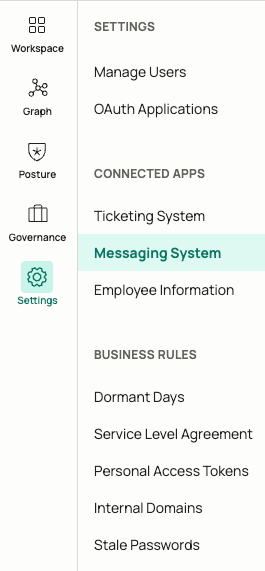
1.1 Click on Messaging Systems under the Settings window
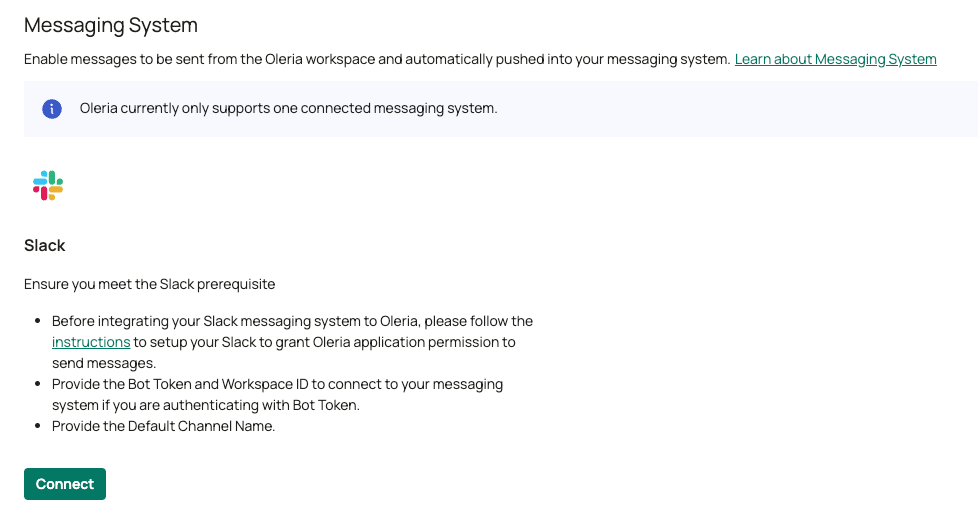
1.2 Click on Connect under the Slack application in messaging system
1.3 Click on Connect in the overlay, we recommend integrating Slack using OAuth.
- This will redirect you to Slack where you will see the permissions Oleria will get after authorization.
- As part of this, you’ll also have to select the default channel where Oleria can send messages unless a different channel is configured later.
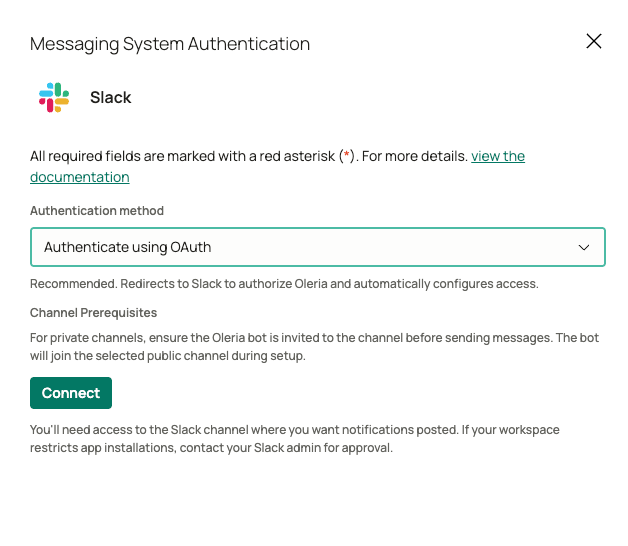
Note: For private channels, ensure the Oleria bot is invited to the channel. Without this, Oleria will not be able to send messages to the selected private channel.
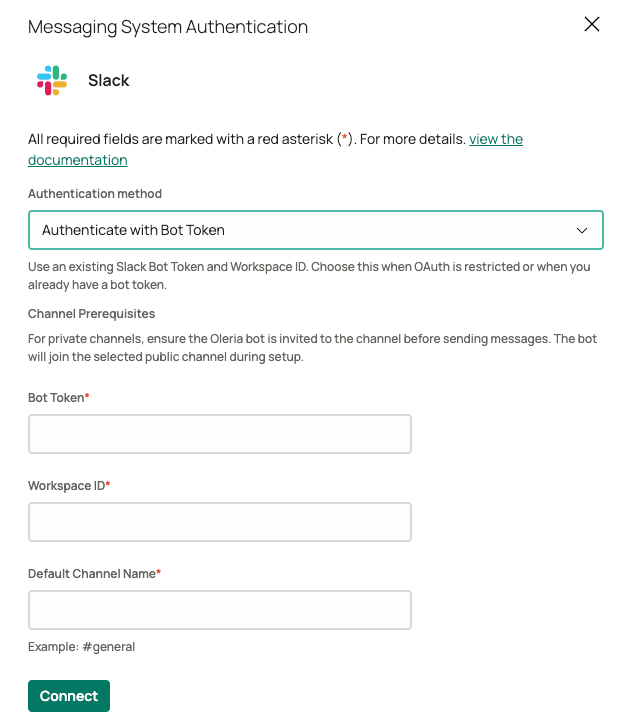
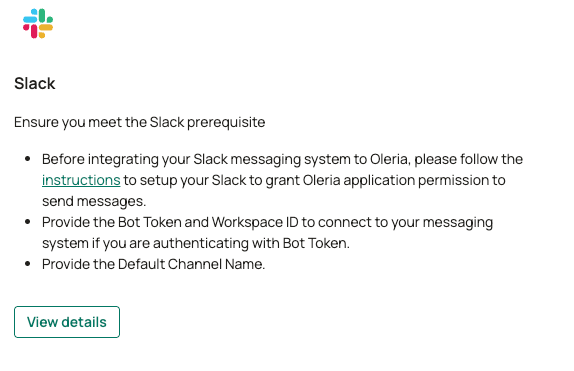
1.4 The alternative to OAuth is a Bot Token, we recommend only using this if OAuth is restricted or when you want to use an existing token.
- Along with the token, please enter your workspace ID (instructions to locate workspace ID).
- Please enter the name of the default channel where Oleria will send messages unless a different channel is configured later
Step 2 Verify the Slack integration status from the messaging system by clicking on View Details.
A connected slack integration will show that messaging has been configured and Oleria will be able to send messages
Contact us
For questions about this integration, please contact us at support@oleria.com.
