Oleria provides identity security and access management teams with visibility and intelligence into who has access to what, where they got that access, how they use it, and whether they should even have it. As part of that promise, we integrate your Sage Intacct application into the Oleria platform. Follow these steps to integrate Sage Intacct with your Oleria workspace
Pre-requisites
- A Sage Intacct account with access to the Developer Portal
- An Intacct Web Services License Username
- Admin privileges on Okta
Creating Web Service user
- If the company already has a Web Services user defined for your application, you can skip this step.
- Have an admin user log in to the company and navigate to Company > Admin > Web Services Users > Add
- Create a new Web Services user and assign the necessary privileges.
- Note: The username must be in the convention of <username>@<environment> in order to work properly with the REST API.
View Web Service user
- Go to Company > Admin > Users, roles, and groups > Web Services users.
- To view the details of a Web Services user, select View along the same row as the record.
Step 1 : Create App in Sage Developer Portal
1.1. Go to the Sage Developer Console
1.2. Click on Applications in the navigation menu
1.3. Click Create new application to start setting up your app
1.4. Select API - REST as the API type for your application
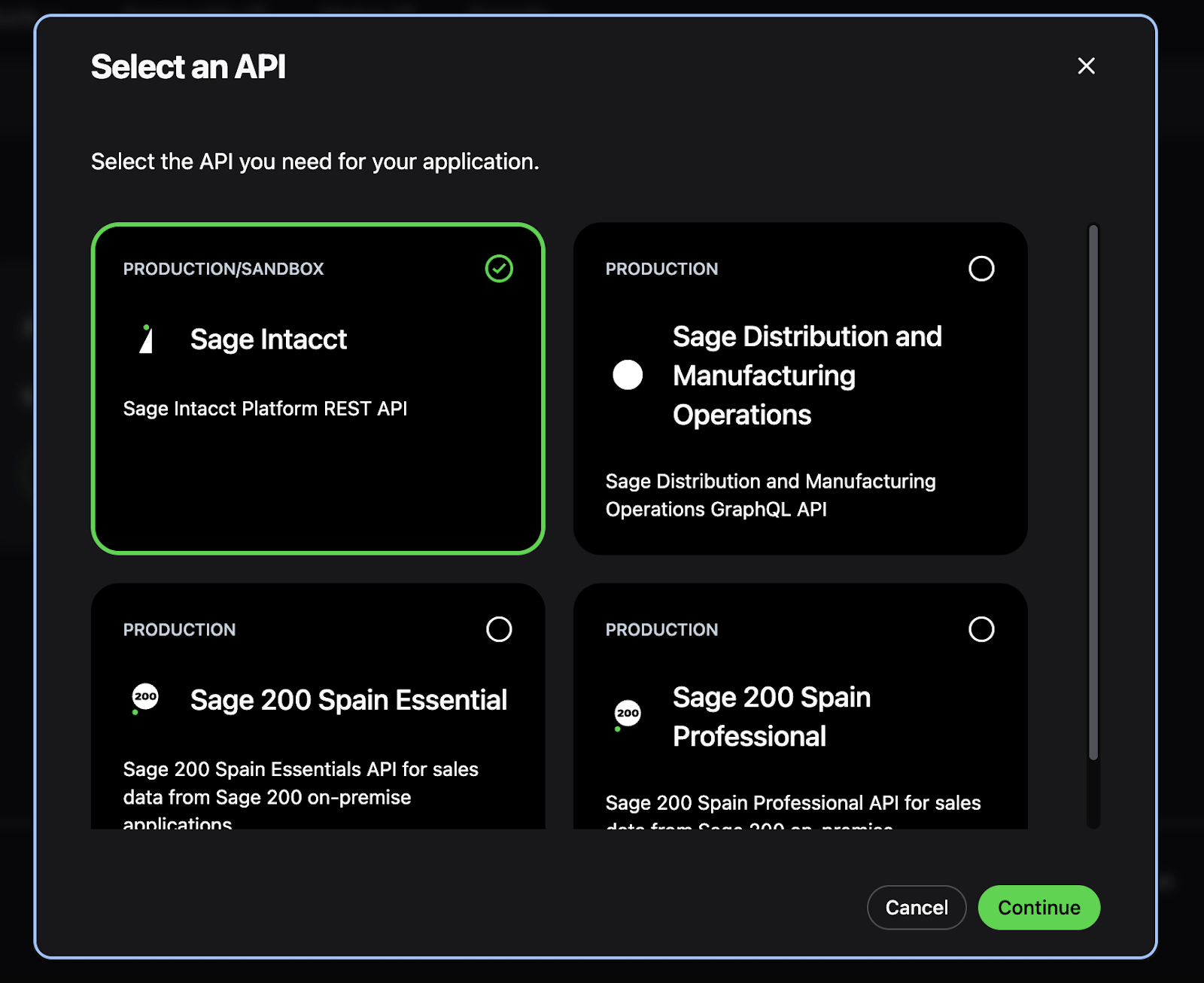
1.5. Configure Application Details. Fill out the basic information for your app:
- Name: Enter a descriptive name for your application (e.g., "Oleria Integration")
- Enter your Intacct Web Services License Password/Key. This password/key is required for authentication with Sage Intacct
- Choose the appropriate Client Scope for your application:
- Production: For live/production environments
- Non-production: For testing and development environments
1.6. After creating your application, you'll see your app credentials:
- Client ID
- Secret Key
1.7. Authorize the client application:
- Navigate to Company > Setup > Company > Security > Authorized Client Applications > Add
- Enter the Client ID for your application.
- Enter the Web Services User ID. This field is case-sensitive, so ensure you enter it exactly as it was created.
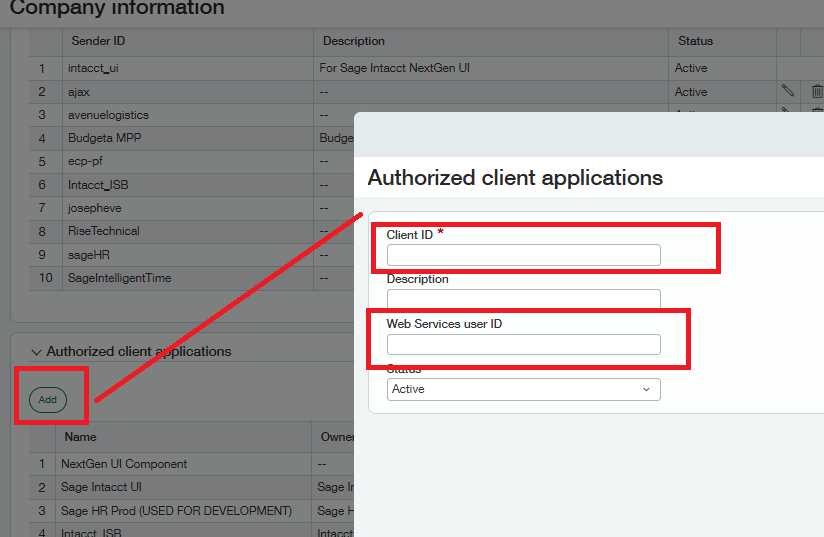
Step 2 : Integrate Sage Intacct with Oleria workspace
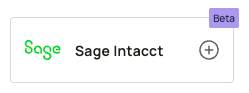
2.1. Log in to your Oleria workspace, navigate to Integrations, and select Sage Intacct.
2.2. The following side pane will open
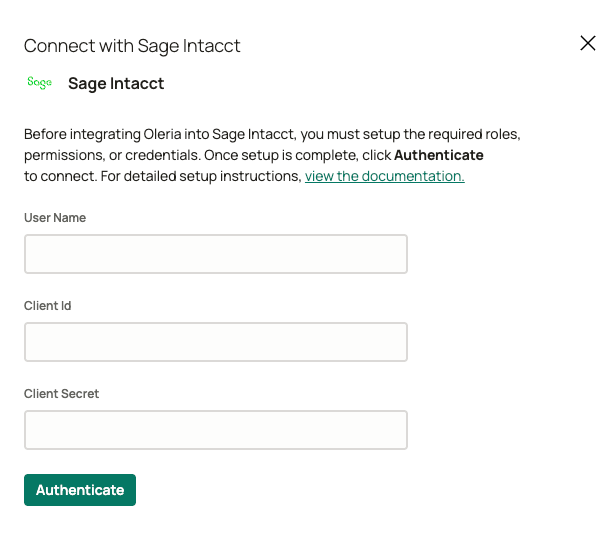
2.3. Enter the following details to successfully integrate Sage Intacct in Oleria
- User Name - Enter the username of the service user created for integration with Oleria
- Client ID - Enter the Client ID generated in Step 1.6
- Client Secret - Enter the Secret Key generated in Step 1.6
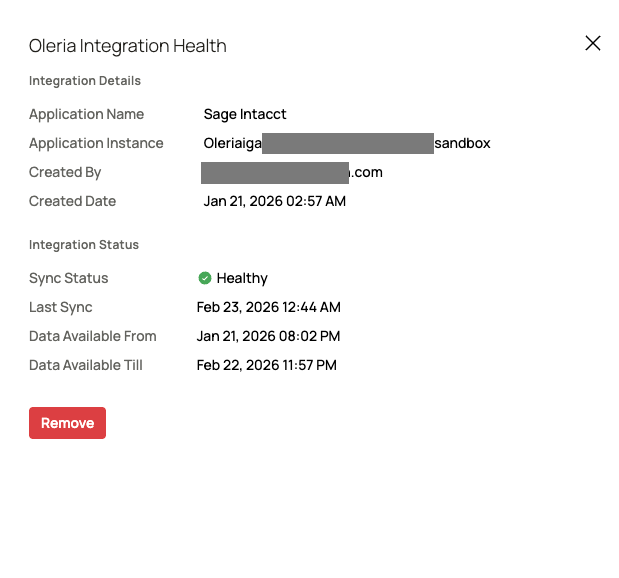
2.4. Verify the Sage Intacct integration status from the connected applications
Contact us
For questions about this integration, please contact us at support@oleria.com.
